Here’s a step-by-step guide to walk you through the process of managing your first Spot Grid Bot on Bybit Indonesia.
- Create a Spot Grid Bot
- View Your Spot Grid Bot
- Modify Spot Grid Bot Parameters
- Withdraw Spot Grid Bot Profits
- Terminate Your Spot Grid Bot
- Share Your Spot Grid Bot
Create a Spot Grid Bot
Create a New Spot Grid Bot
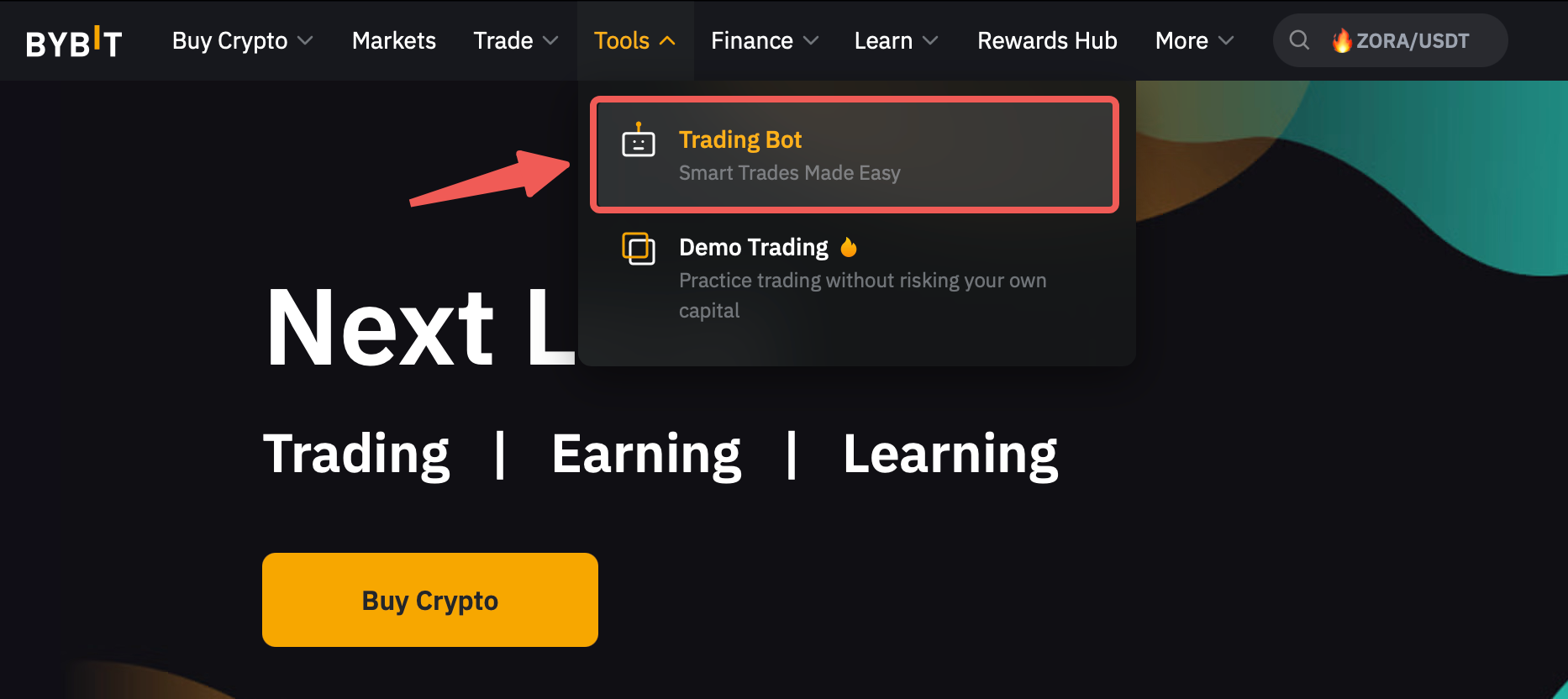
Step 1: Please click on Tools → Trading Bot in the navigation bar to enter the Bybit Indonesia Trading Bot page.
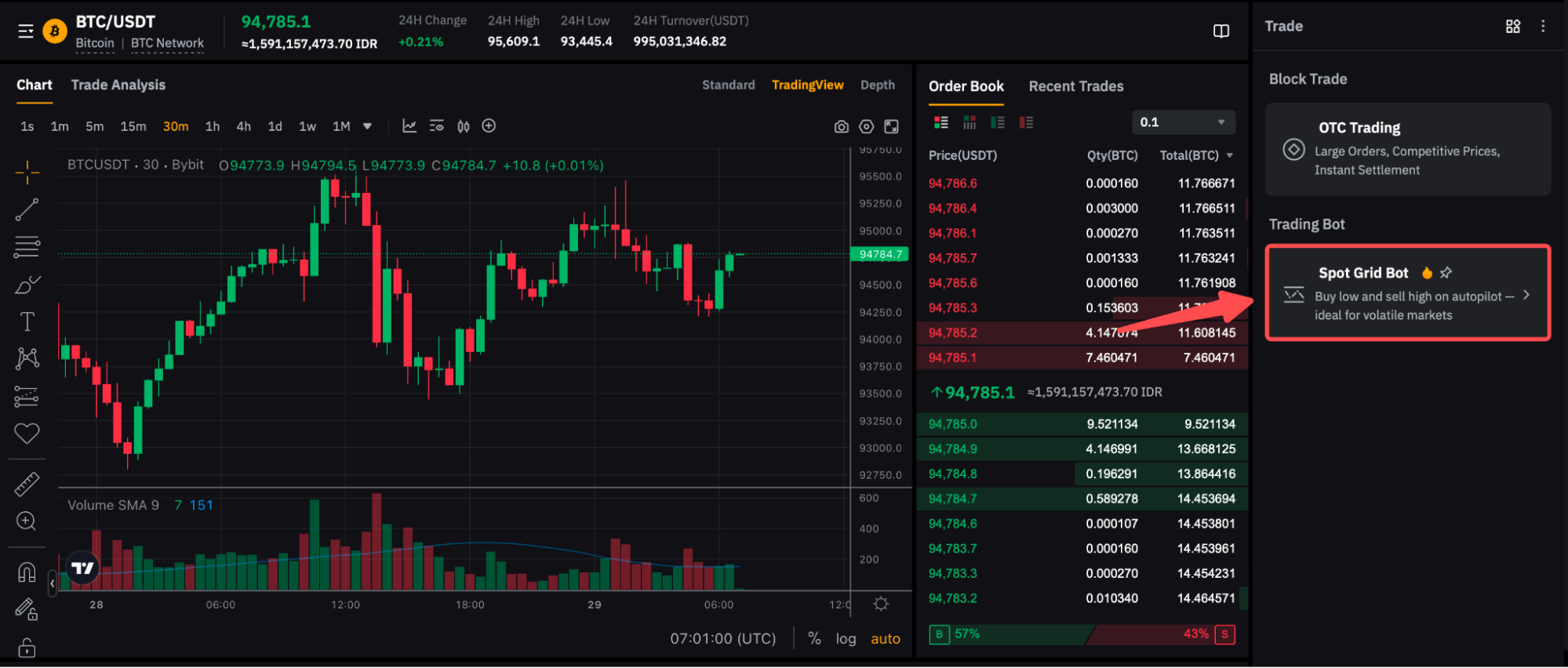
Alternatively, on the Spot Trading page, navigate to the order zone on the right side and select Tools → Spot Grid Bot.
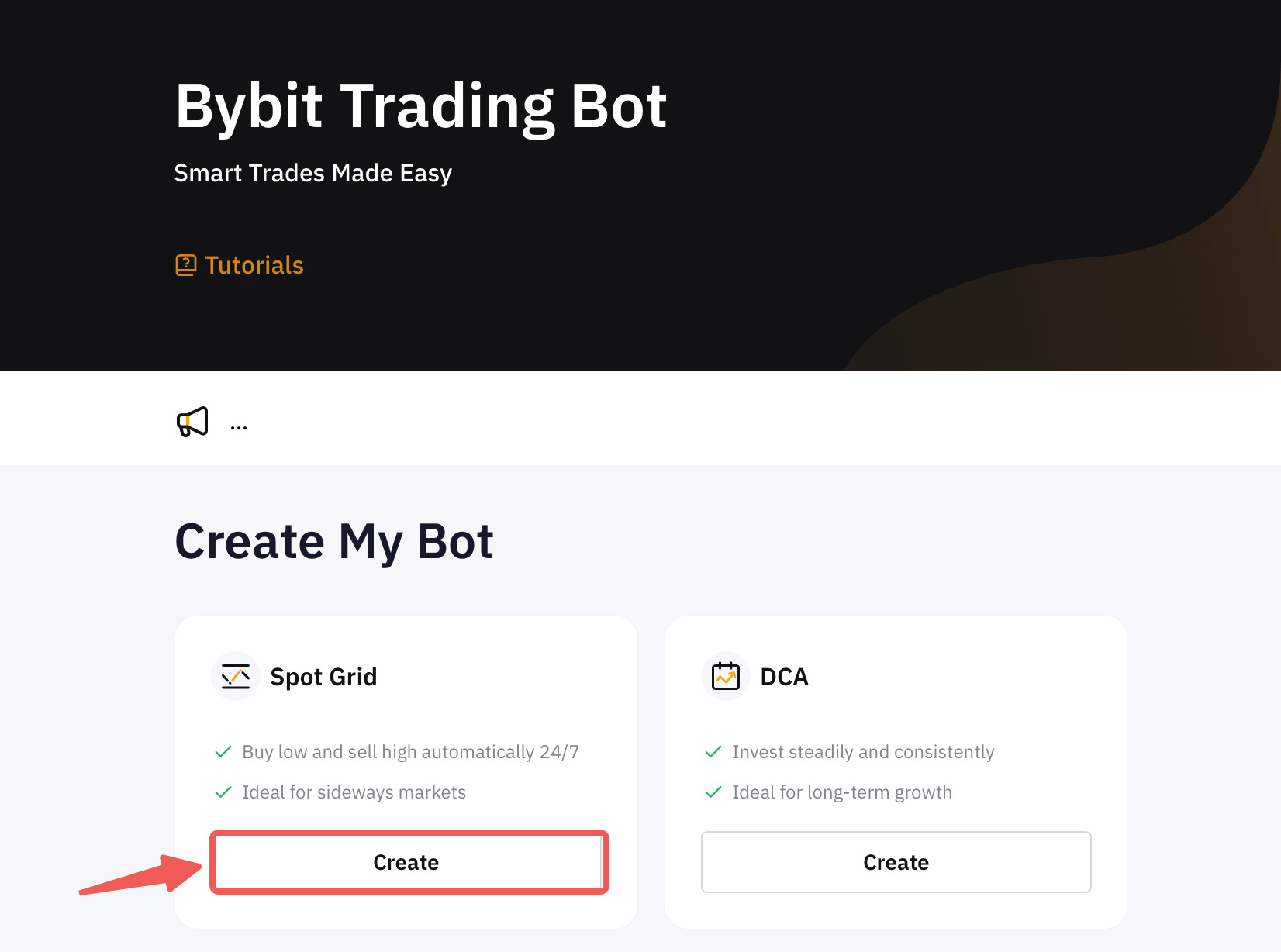
Step 2: Create your Spot Grid Bot by clicking on Create Now to go to the Create Spot Grid Bot page.
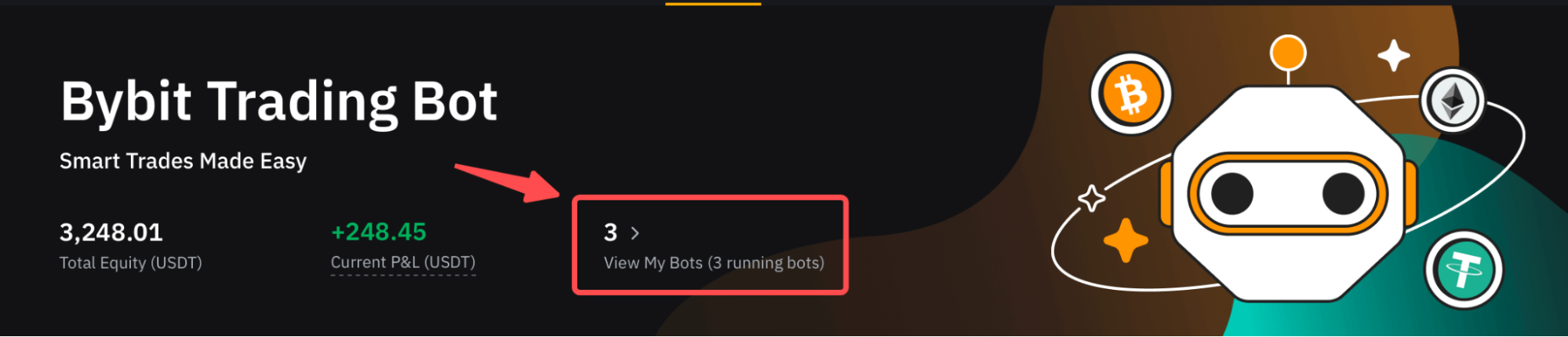
If you've previously created Bybit Indonesia trading bots, you can view the Total Equity (USDT) and Current P&L (USDT) under My Bots in the upper right corner of the Bybit Indonesia Trading Bot page.
Step 3: You have two (2) options for creating Spot Grid Bots.
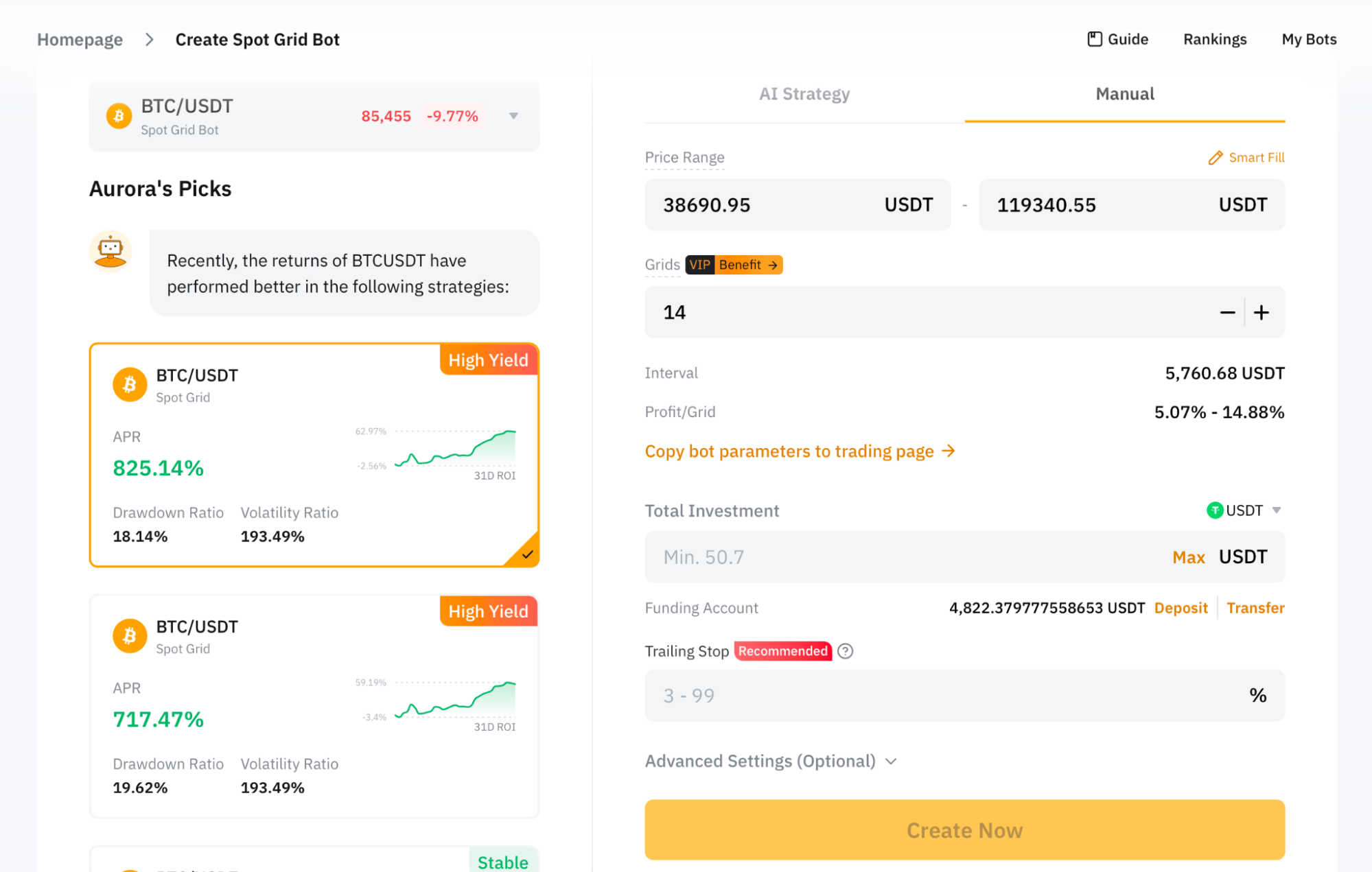
1. Manual
|
Parameters |
Description |
|
Pair |
Select Spot pair |
|
Price Range |
Set lower and upper price bounds. The grid bot will only operate within the price range. If the market price falls outside this range, no new order will be placed by the grid bot. |
|
Smart Fill |
Automatically fill in the grid bot’s parameters based on the historical data performance of the chosen spot trading pair. For more information, see also AI Strategy. |
|
No. of Grids |
Enter the number of grids. The higher the number of grids, the smaller the price intervals. This means that in a volatile market, your orders may be filled more frequently, but your profits would be lower, due to multiple trading fees. |
|
Total Investment |
Enter the amount to invest, you can invest by quote token, base token, or a combination of both.
Please note that you need to have the assets in your Funding Account to create a bot. |
|
Advanced Settings (Optional) |
Trailing Stop: The Trailing Stop automatically adjusts your exit point based on your account's highest recorded equity. For example, if your equity fluctuates between 500, 450, 600, 900, 800, 1,000, and 800 at different points throughout the week, and you set a 20% retracement rate, your exit equity will be 400, 400, 480, 720, 720, 800, and 800, respectively. Please note that due to slippage, your final account equity may differ from the exit equity. |
|
Entry Price: Set the entry price to create a Spot Grid Bot at a specific price level. If you do not set an entry price, the bot will automatically buy the coins at the current market price. | |
|
Stop-Loss Price: When the market price of the coin reaches the Stop-Loss price, the bot will be terminated and automatically sell the base token into USDT at the predetermined level to limit your losses. | |
|
Take-Profit Price: When the market price of the coin reaches the Take-Profit price, the bot will be terminated and automatically sell the base token into USDT at the predetermined level to lock in your profits. |
Notes:
— The base token is the basic unit of a trading pair. Taking BTC/USDT as an example, the base token — BTC — is the asset that you're buying or selling.
— The entry price must not be lower than 30% of the current market price, or higher than 100% of the market price. Otherwise, the order cannot be placed.
— The Take-Profit price must be greater than the entry price and the upper price limit.
— The Stop-Loss price must be lower than the entry price and the lower price limit.
— When the market price reaches the entry price, the grid bot will buy at the optimal price to ensure that the Spot Grid Bot is executed correctly.
2. AI Strategy
By using AI Strategy, the system will suggest the parameters based on the historical data performance of the Spot trading pair. Alternatively, you can also refer to the suggestion from Aurora’s Picks to create a Spot Grid Bot based on your preferences.
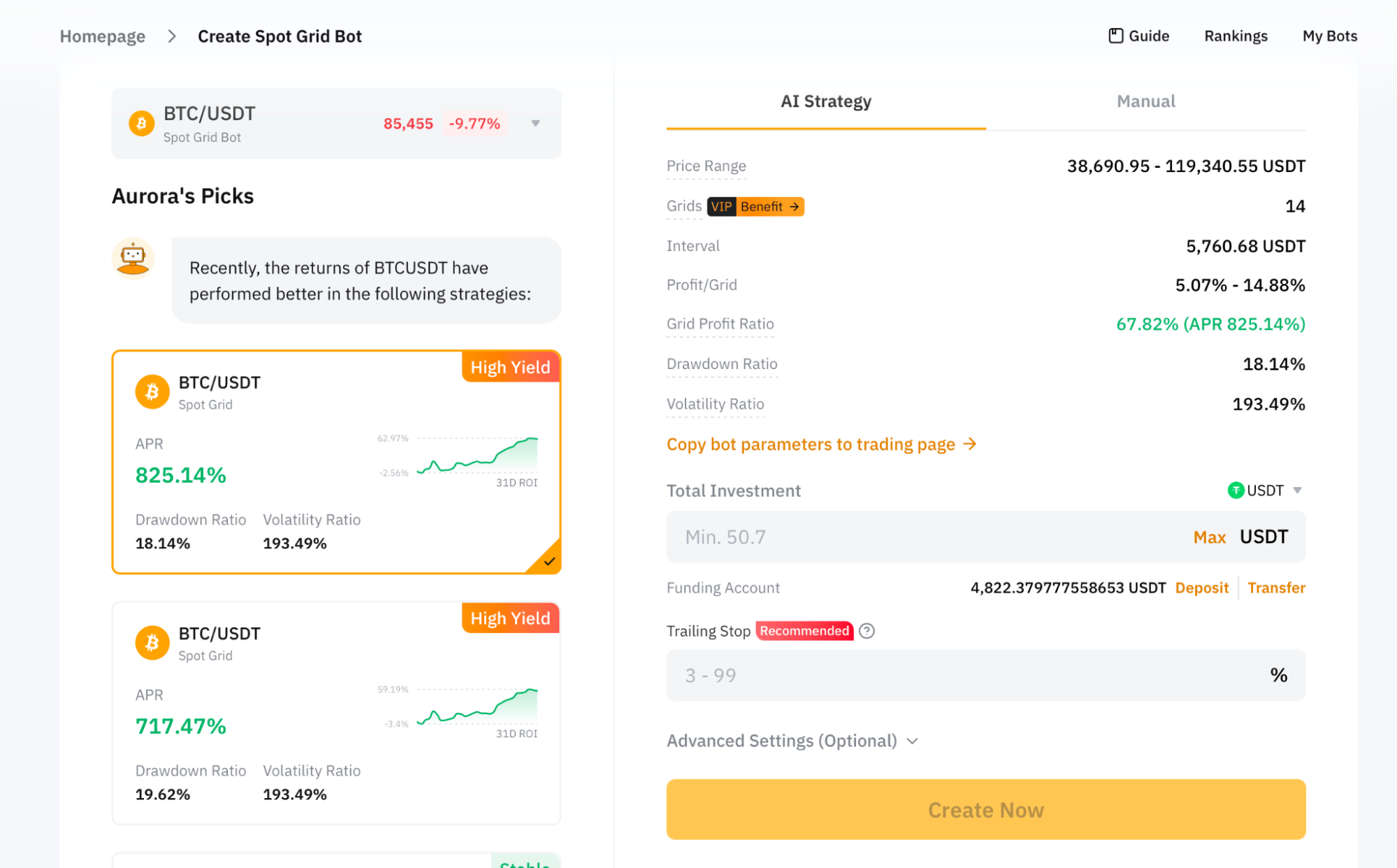
Then, click on Create Now.
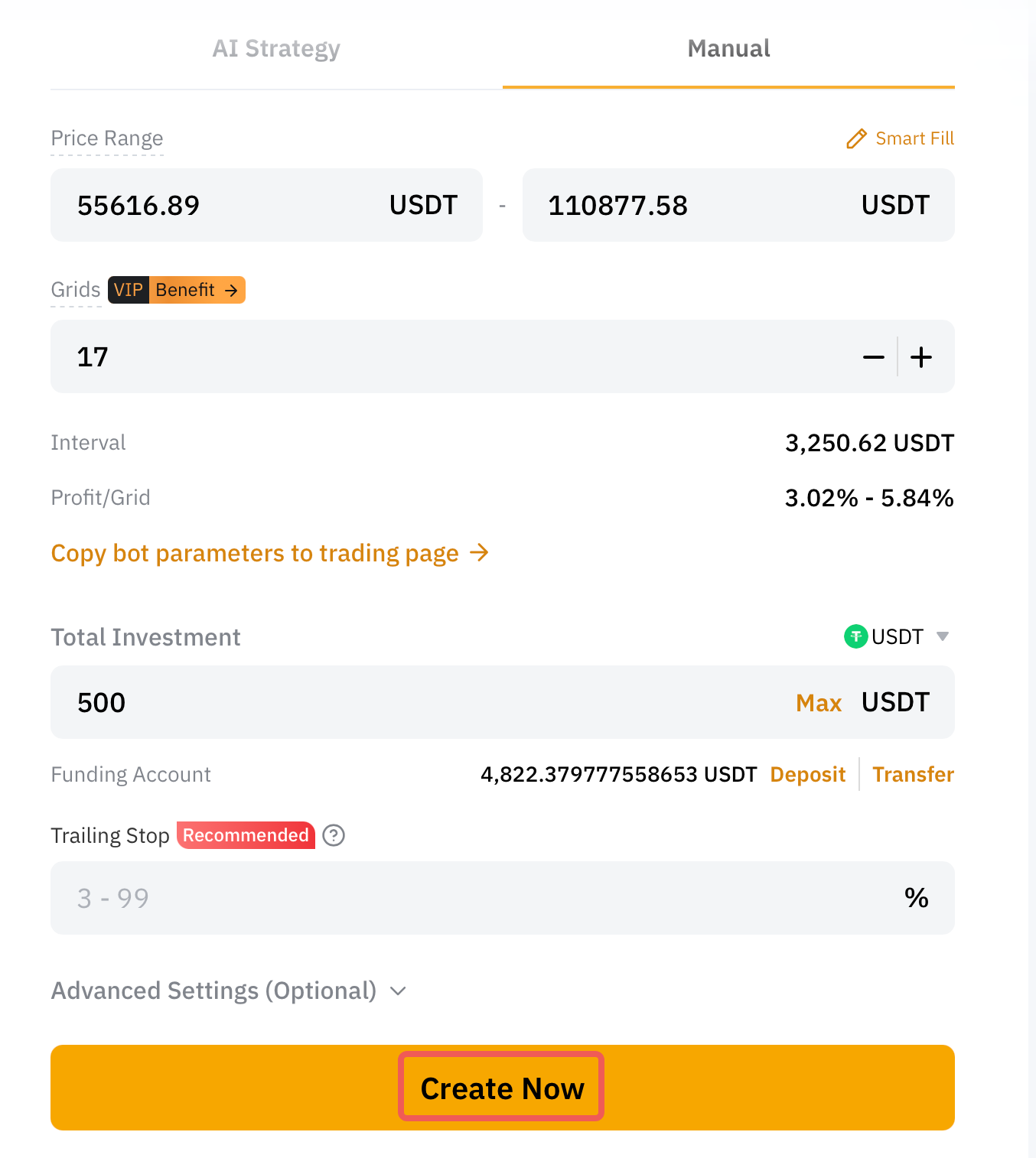
Step 4: Please double-check the grid bot information you’ve created, and then click on Confirm to start trading.
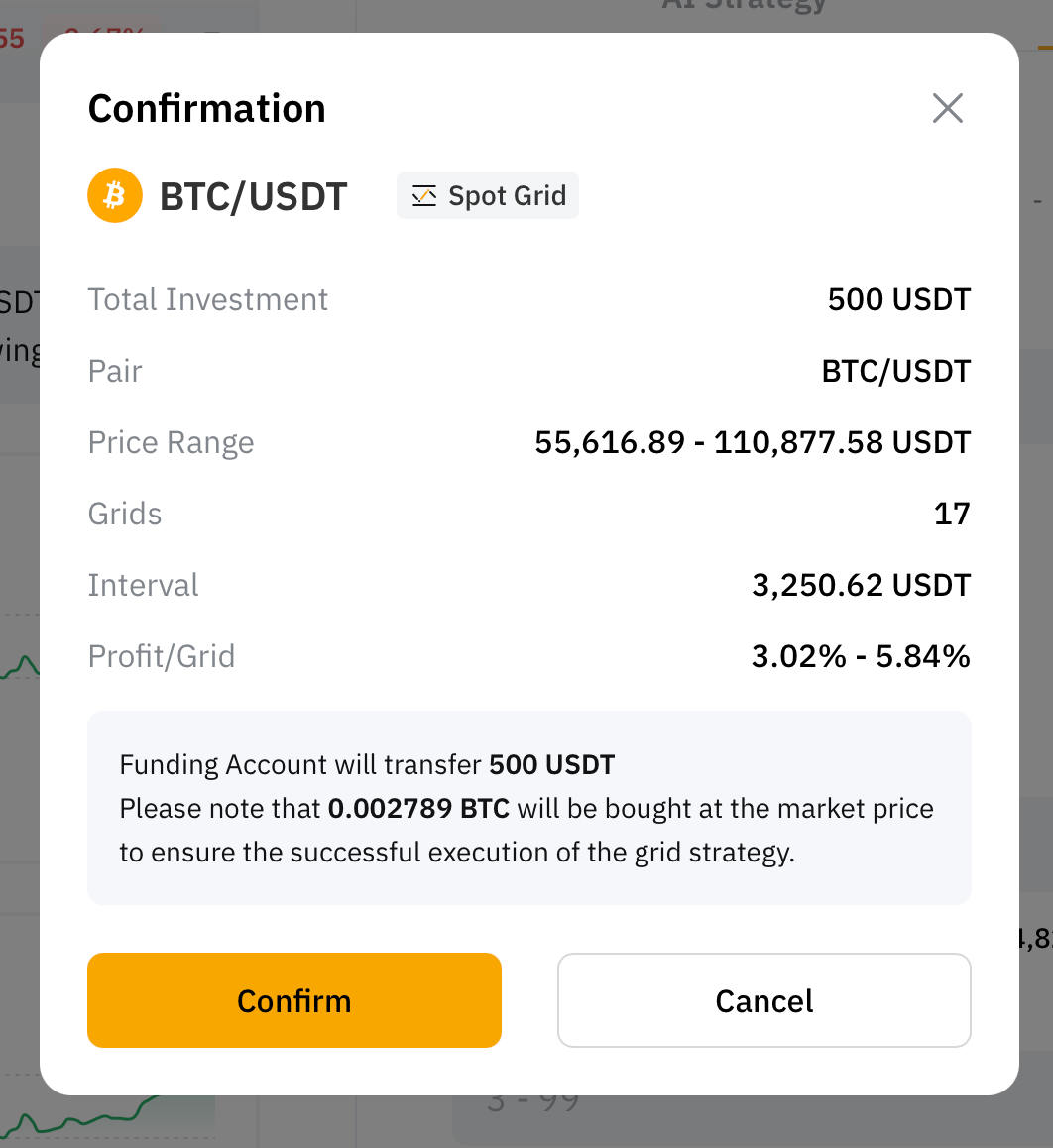
Your Spot Grid Bot has been successfully created!
Copy an Active Spot Grid Bot
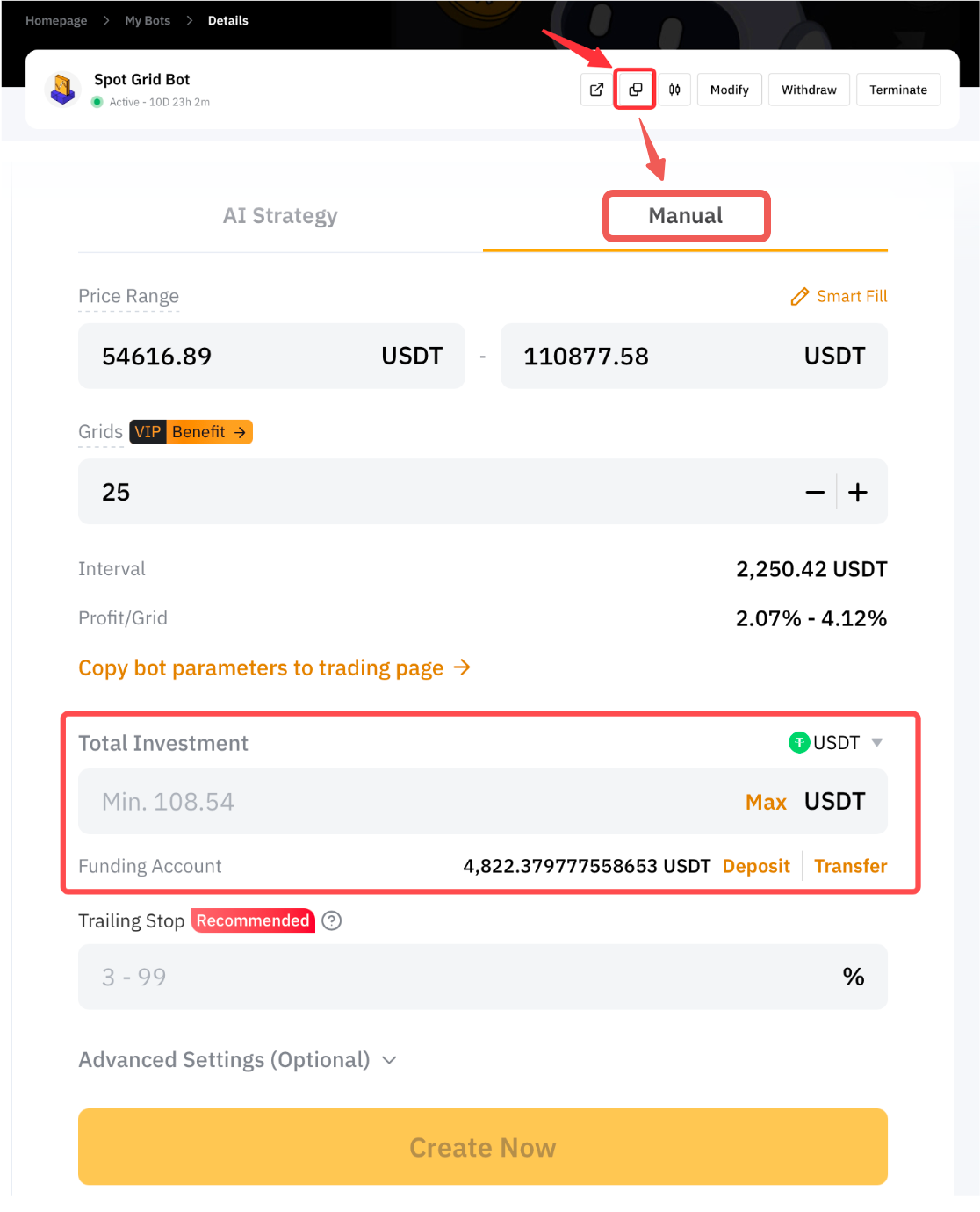
If you have previously created a spot grid bot, you can now copy your active bot’s current parameters and strategy to create a new bot.
To do so, simply go to the Trading Bot page and click on View My Bots.
Click on Details in the upper right corner of the grid bot whose parameters you want to replicate, then click on the Copy icon. Adjust the parameters, if necessary and specify your total investment amount, then click on Create Now.
View Your Spot Grid Bot
Check Spot Grid Bot Details
After you click on Confirm, the page will automatically redirect to My Bots for you to view your active grid bots.
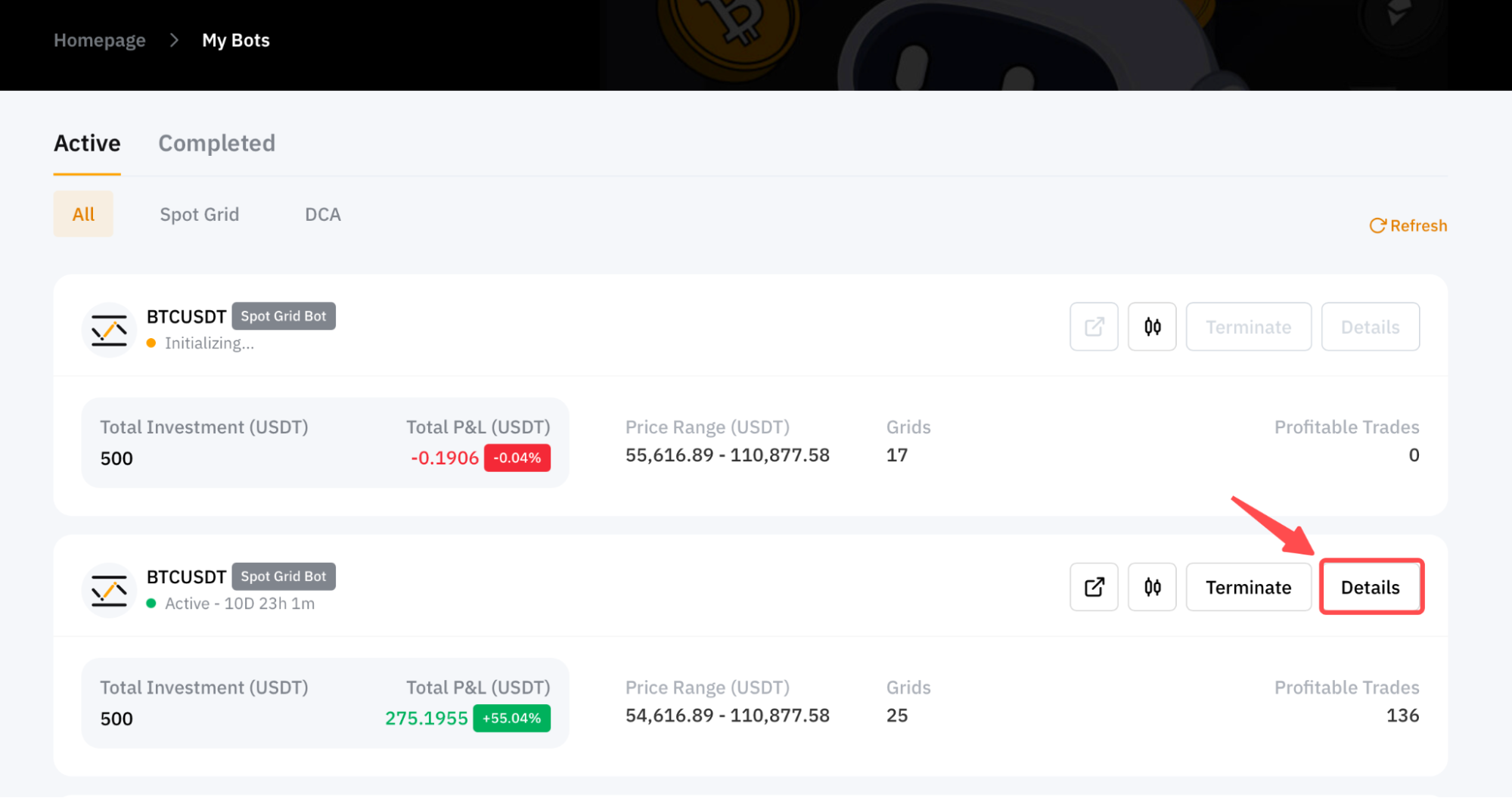
You can click on Details in the upper right corner of the grid bot you wish to view to explore more information, including the current status of your Spot Grid Bot, current position value under the Holdings tab, and your order history.
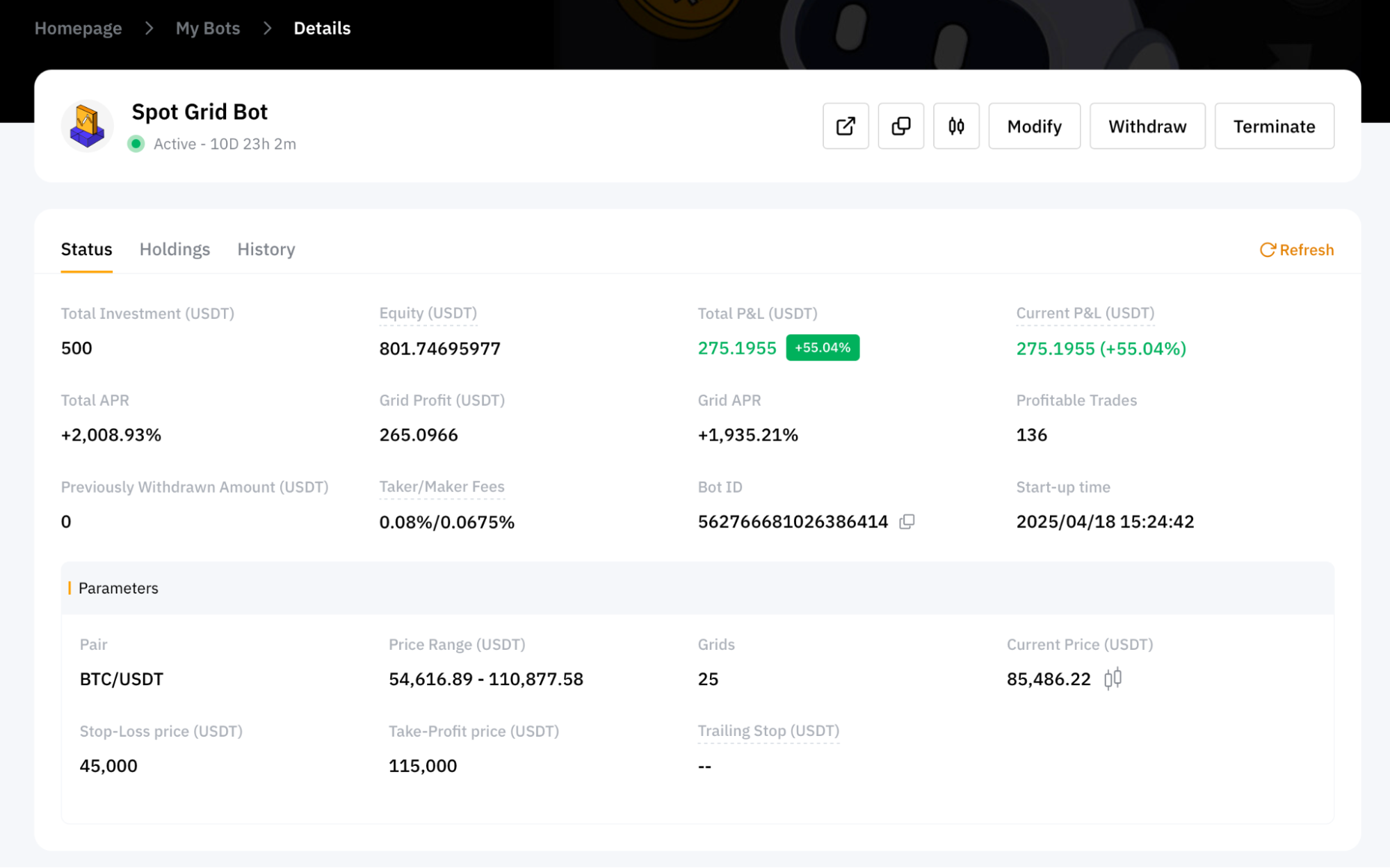
Please note that the calculation formulas for Total P&L and current P&L are as follows:
-
Total P&L = Realized P&L from Grid Profits + Unrealized P&L from Base Token Value
-
Current P&L = Realized Grid Profits + Unrealized P&L − Cumulative Withdrawn Grid Profits
To learn more about profit and loss calculations, please refer to P&L Calculations (Spot Grid Bot).
Check Spot Grid Bot Parameters
To view the spot grid bot parameters on the trading page, click on the Candlestick Chart icon on the Details page.
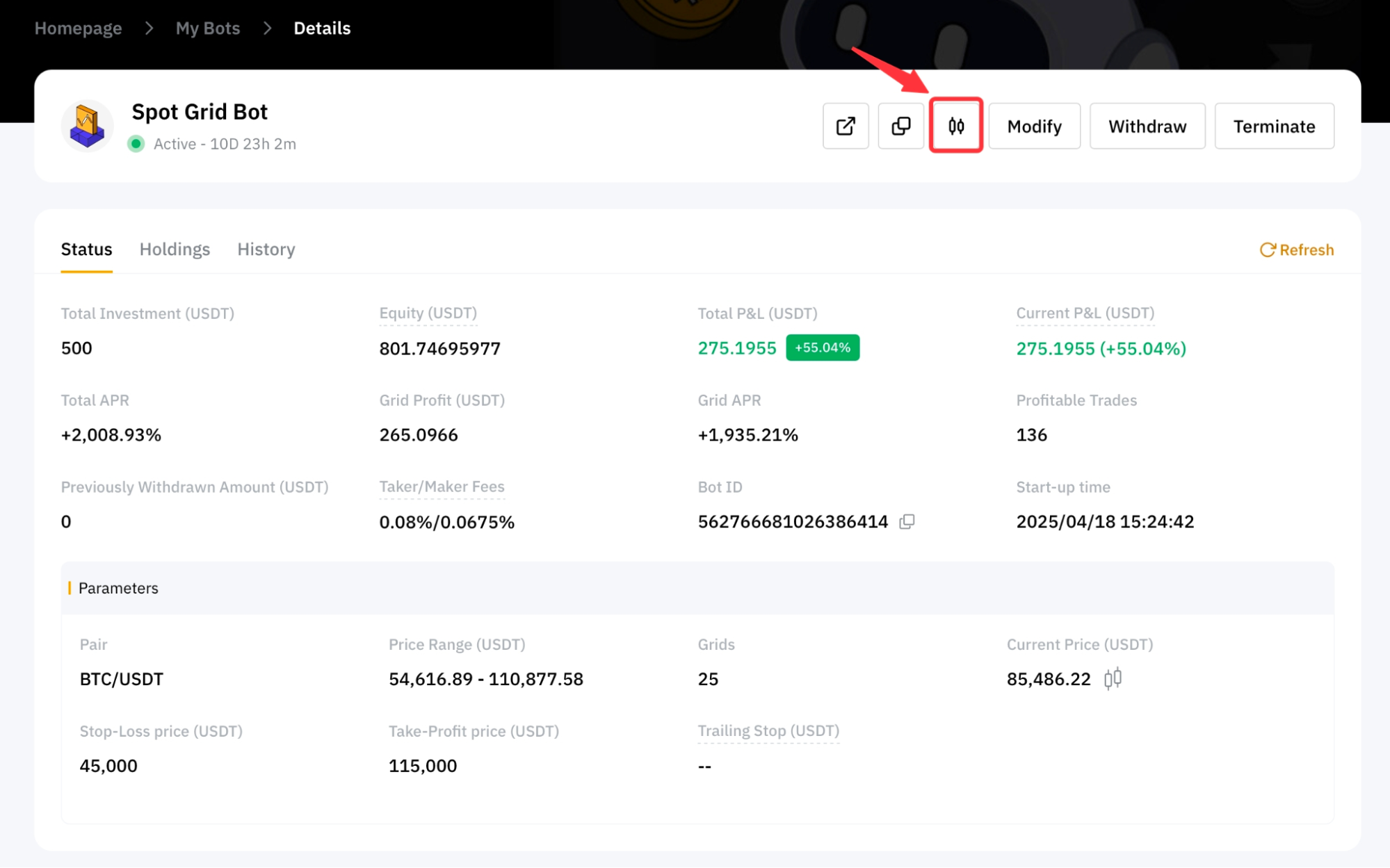
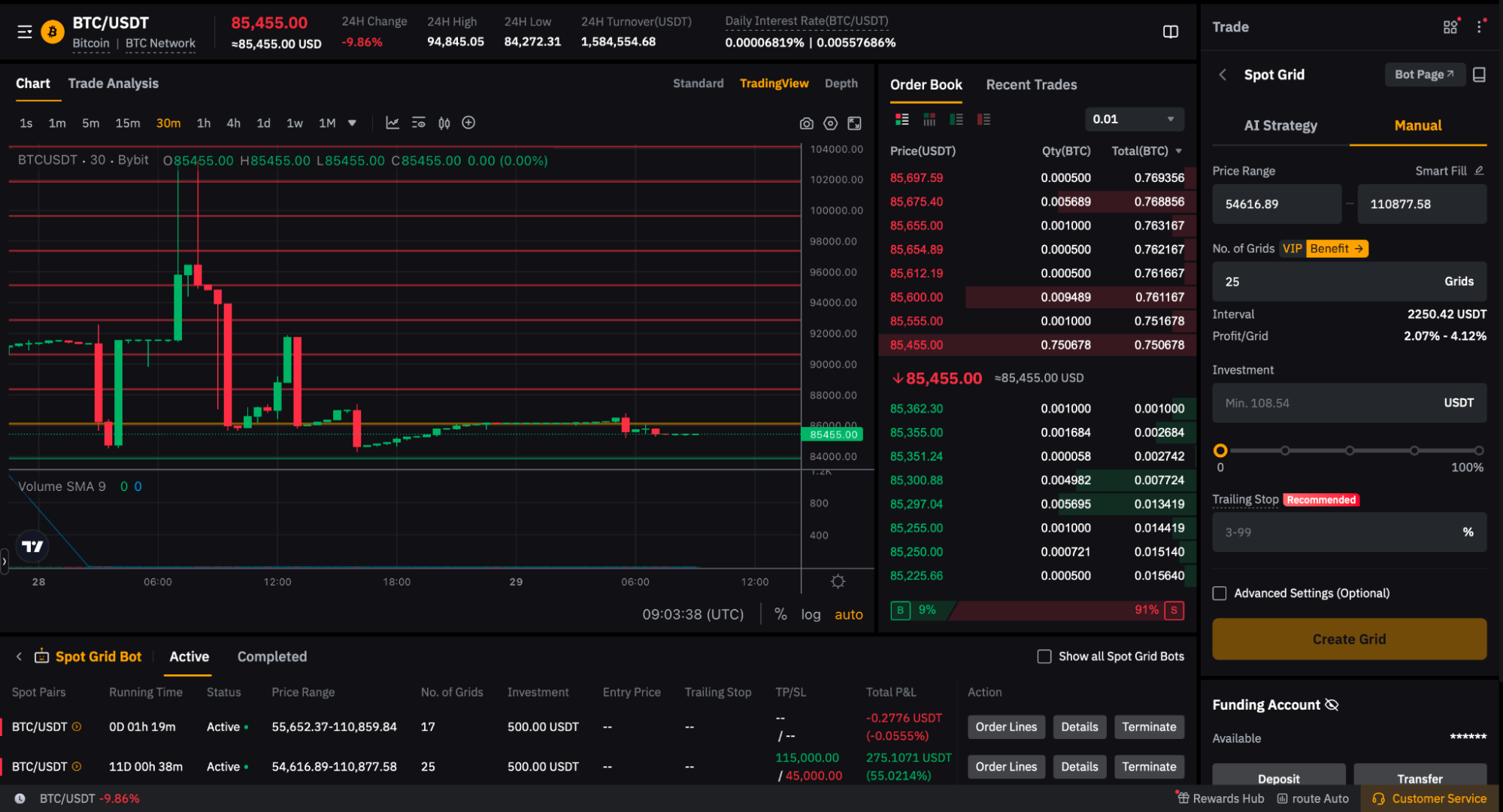
You will be automatically redirected to the spot grid bot trading page, where you can monitor the trading performance of all your running bots.
You can also create a new spot grid bot via the trading parameters on the right side of the page. Simply set your parameters and investment amount, then click on Create Grid to proceed. Currently, this feature is only available on the Bybit Indonesia website.
Modify Spot Grid Bot Parameters
You have the flexibility to adjust parameters such as Price Range, Grids, Take Profit, and Stop Loss once your Spot Grid Bot is created.
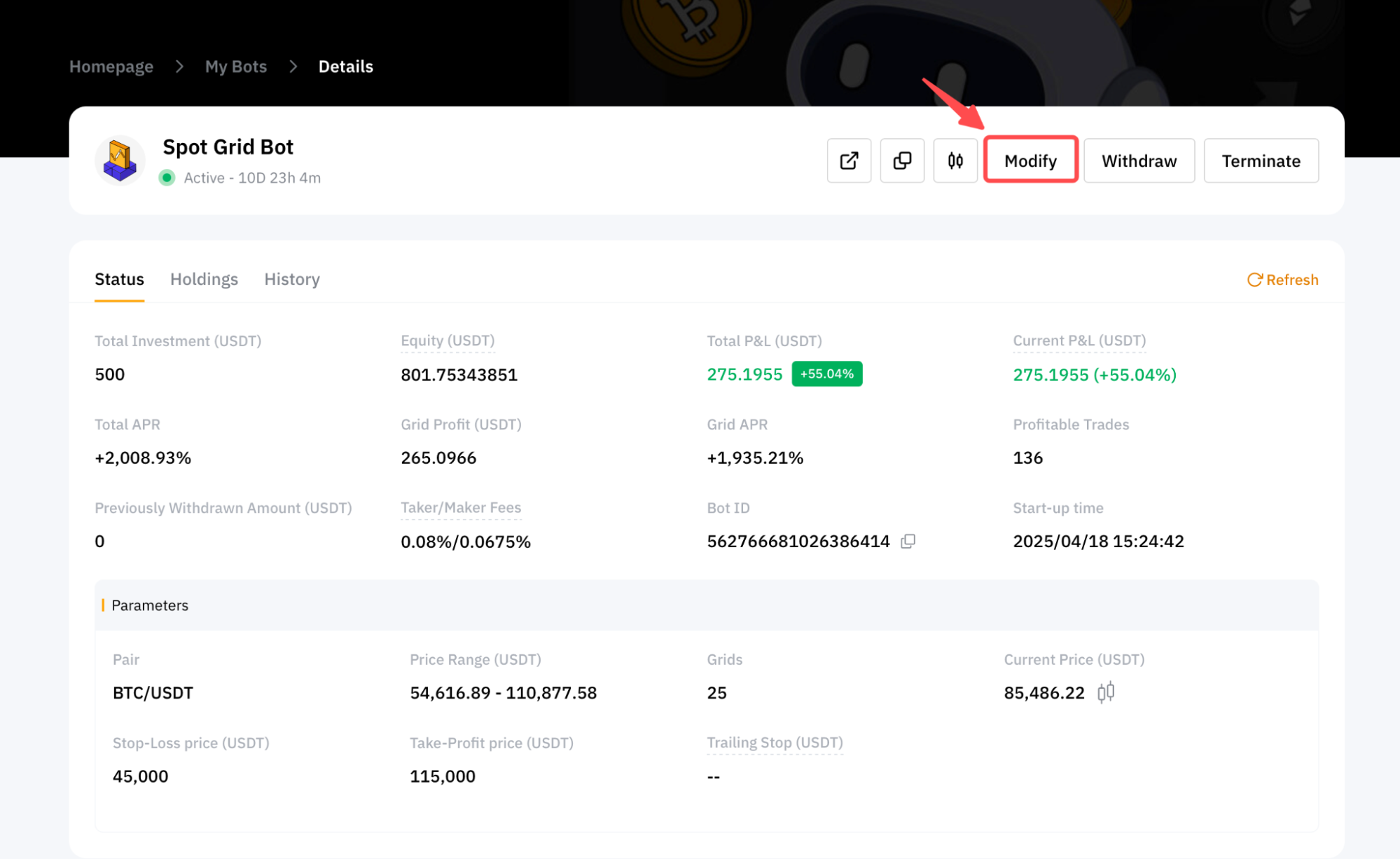
Step 1: Go to the details page of your Spot Grid Bot and click on Modify.
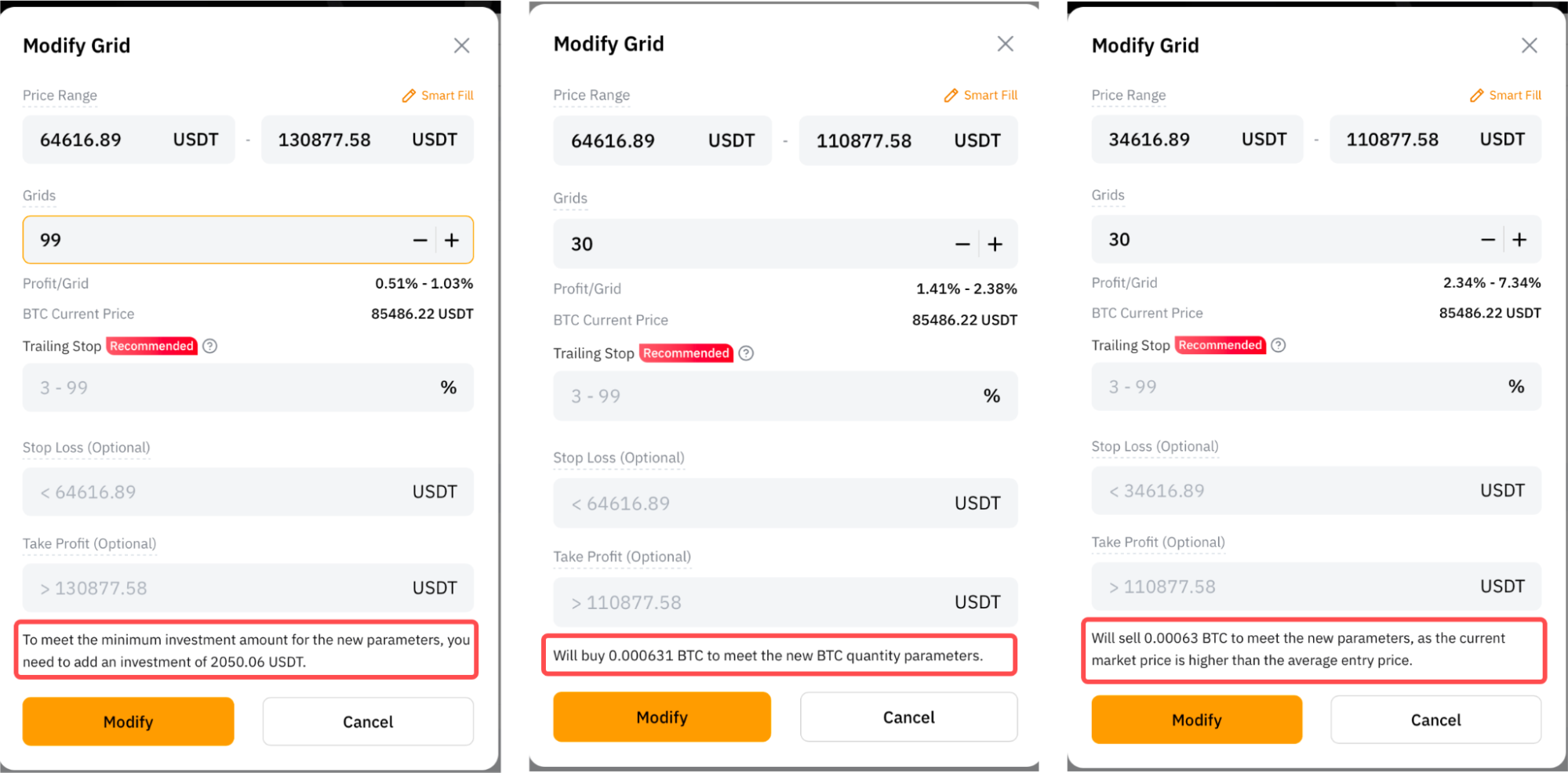
Step 2: Modify your Price Range, Grids, or TP/SL. Additional investment amounts or a modified buy or sell quantity of the base token may be required to meet the new parameters.
Notes:
— The current modification parameters do not support independently changing Take Profit and Stop Loss settings. You must modify either the grid number or price range to adjust take-profit and stop-loss.
— Modifying parameters will cancel the previous Take Profit and Stop Loss settings. You can reconfigure your take-profit and stop-loss when modifying parameters.
— Please ensure you have sufficient funds in your Funding Account if additional investment amounts are required to meet the adjusted parameters for your bot.
Step 3: Review your modified parameters and click on Confirm.
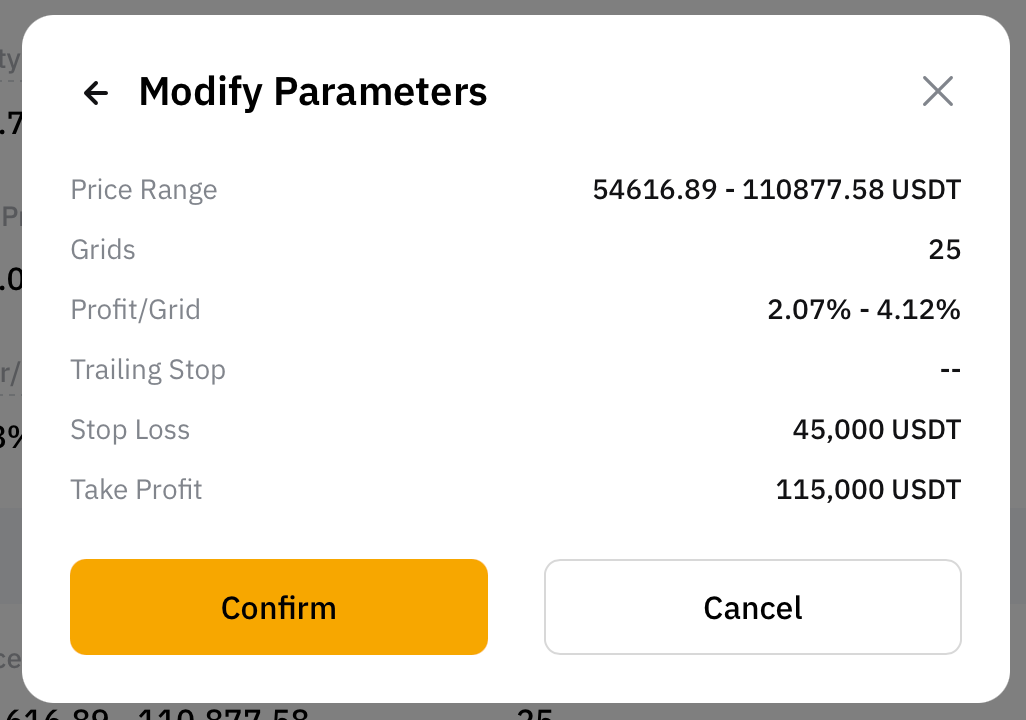
You have successfully modified your Spot Grid Bot parameters!
Withdraw Spot Grid Bot Profits
To withdraw your Spot Grid Bot profits, go to your bots Details and click on Withdraw.
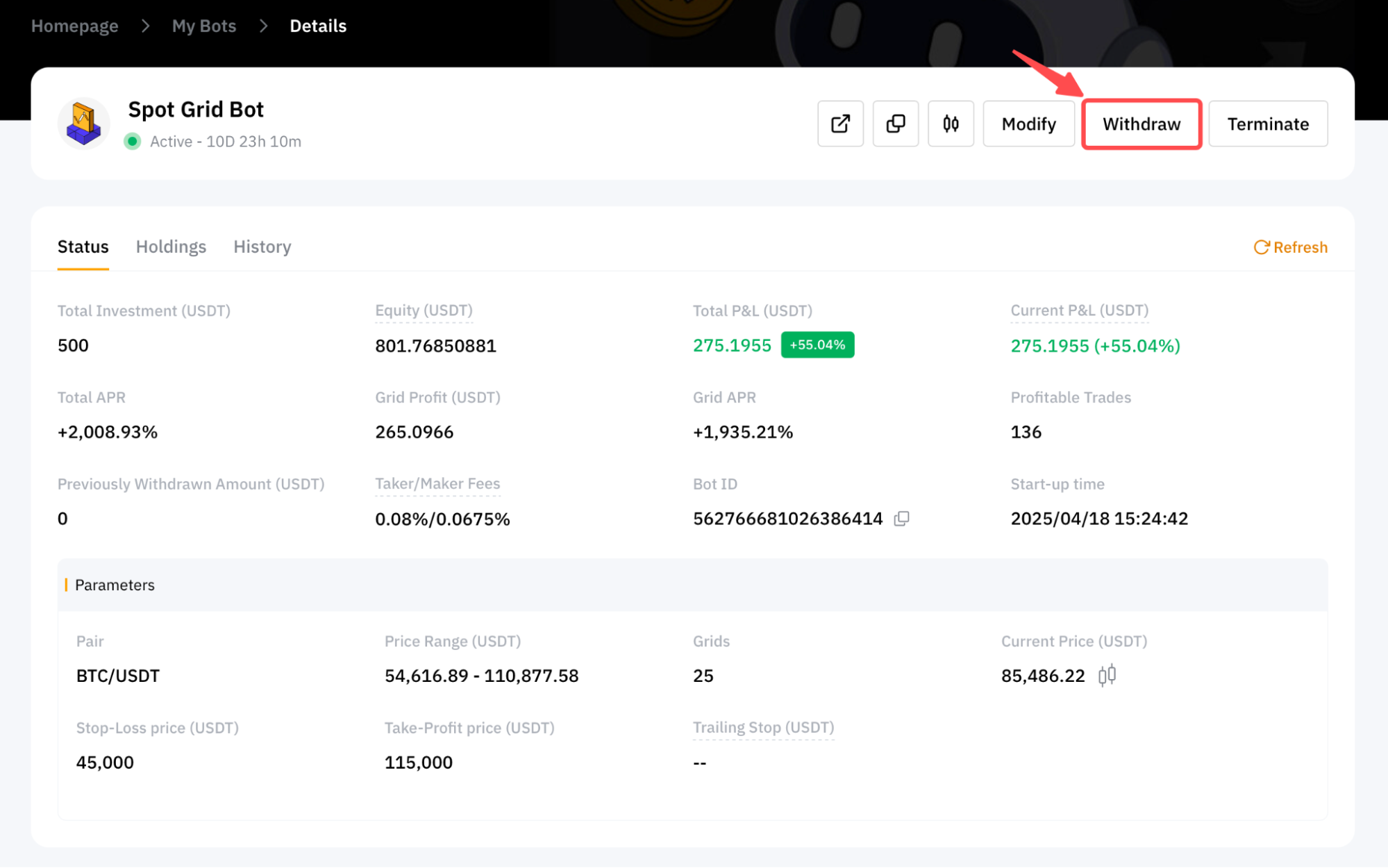
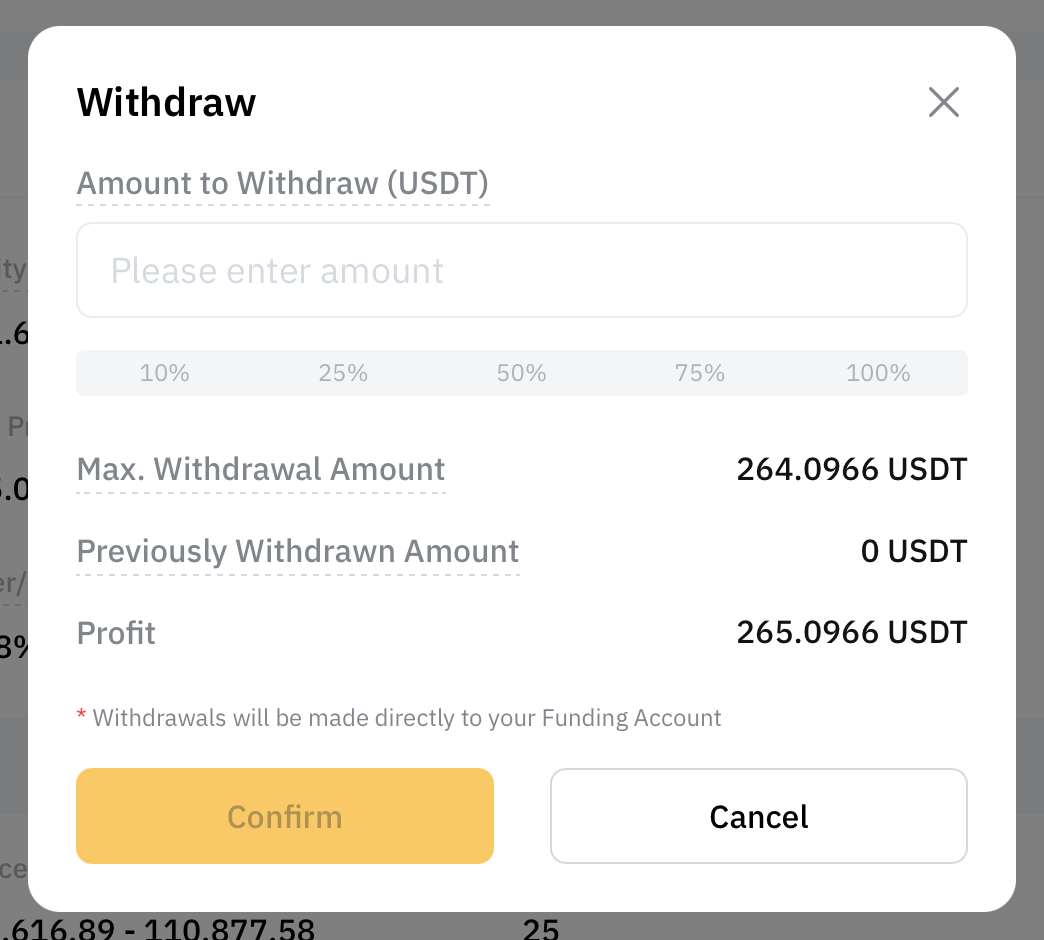
The maximum amount that can be withdrawn is your grid profit after the fee deduction. You can refer to the Max. Withdrawal Amount which is displayed on the withdrawal window. The withdrawn amount will be credited to your Funding Account.
Terminate Your Spot Grid Bot
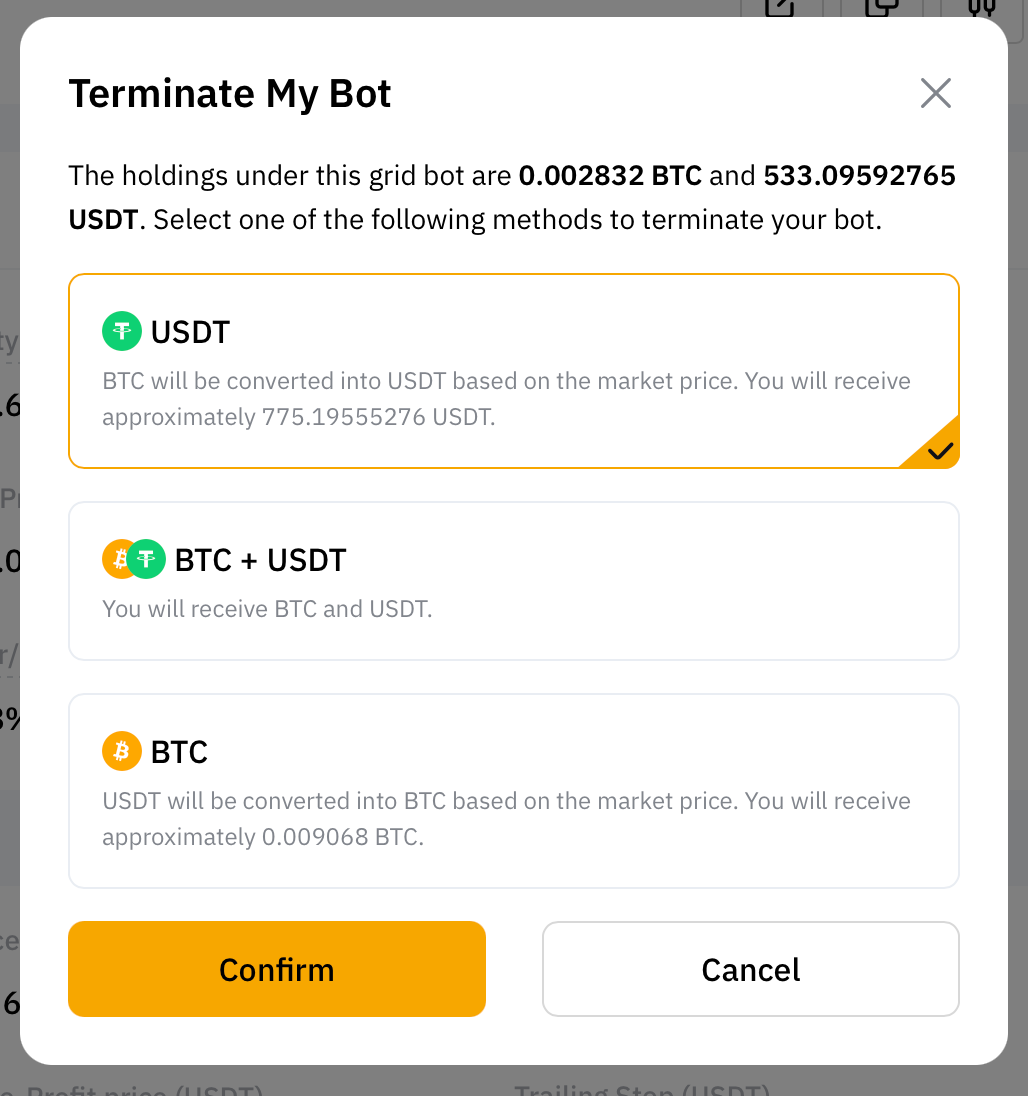
To terminate your Spot Grid Bot, go to the details page of your Spot Grid Bot and click on Terminate.
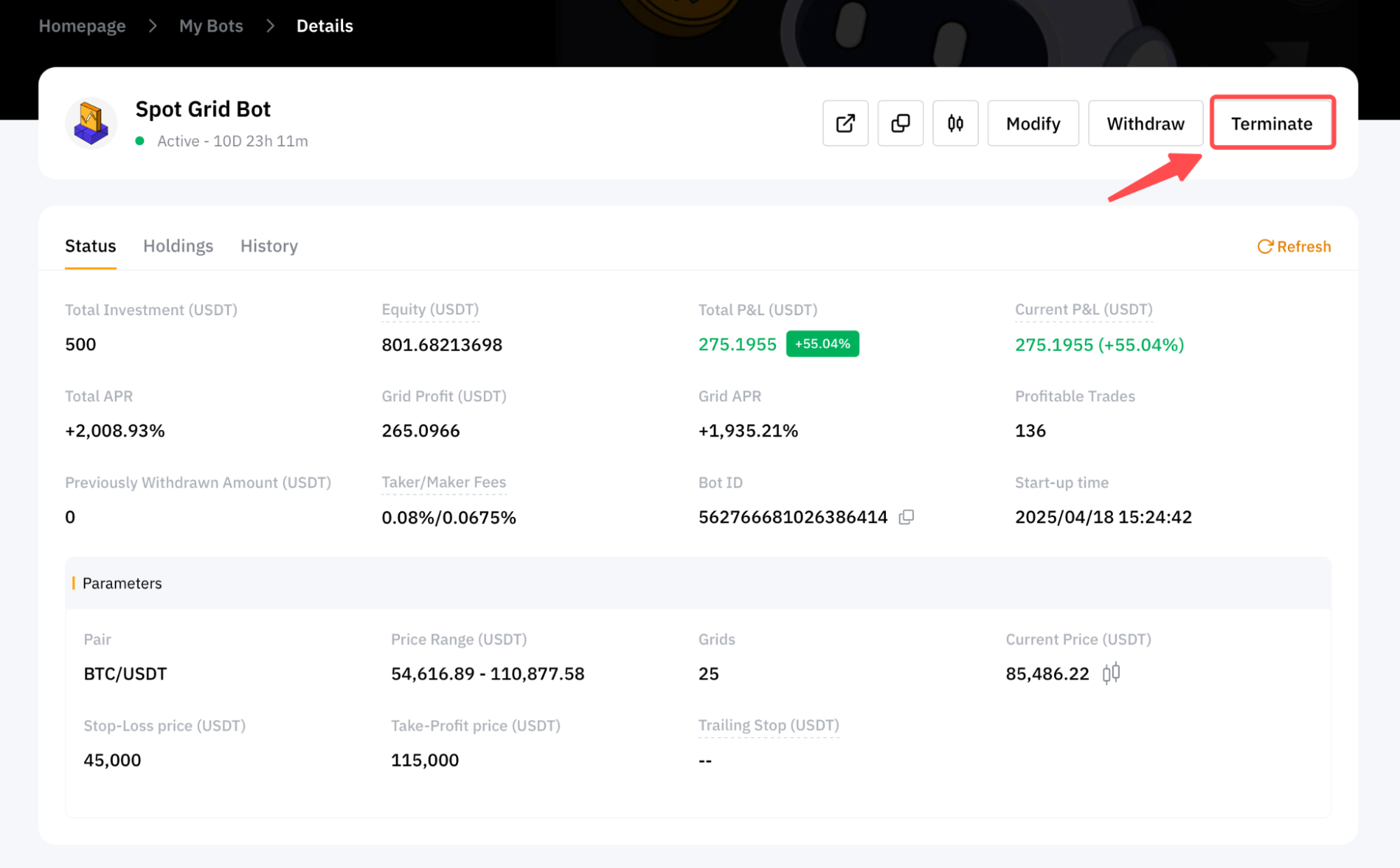
Once the bot is terminated, all pending orders will be canceled, and your funds will be returned to your Funding Account.
You can terminate your bot using one (1) of three methods:
1. In Quote Token: All of your base tokens will be converted into quote tokens at the market price.
2. In Quote + Base Token: You will receive the existing held base and quote tokens.
3. In Base Token: All of your quote tokens will be converted into base tokens at the market price.
Share Your Spot Grid Bot
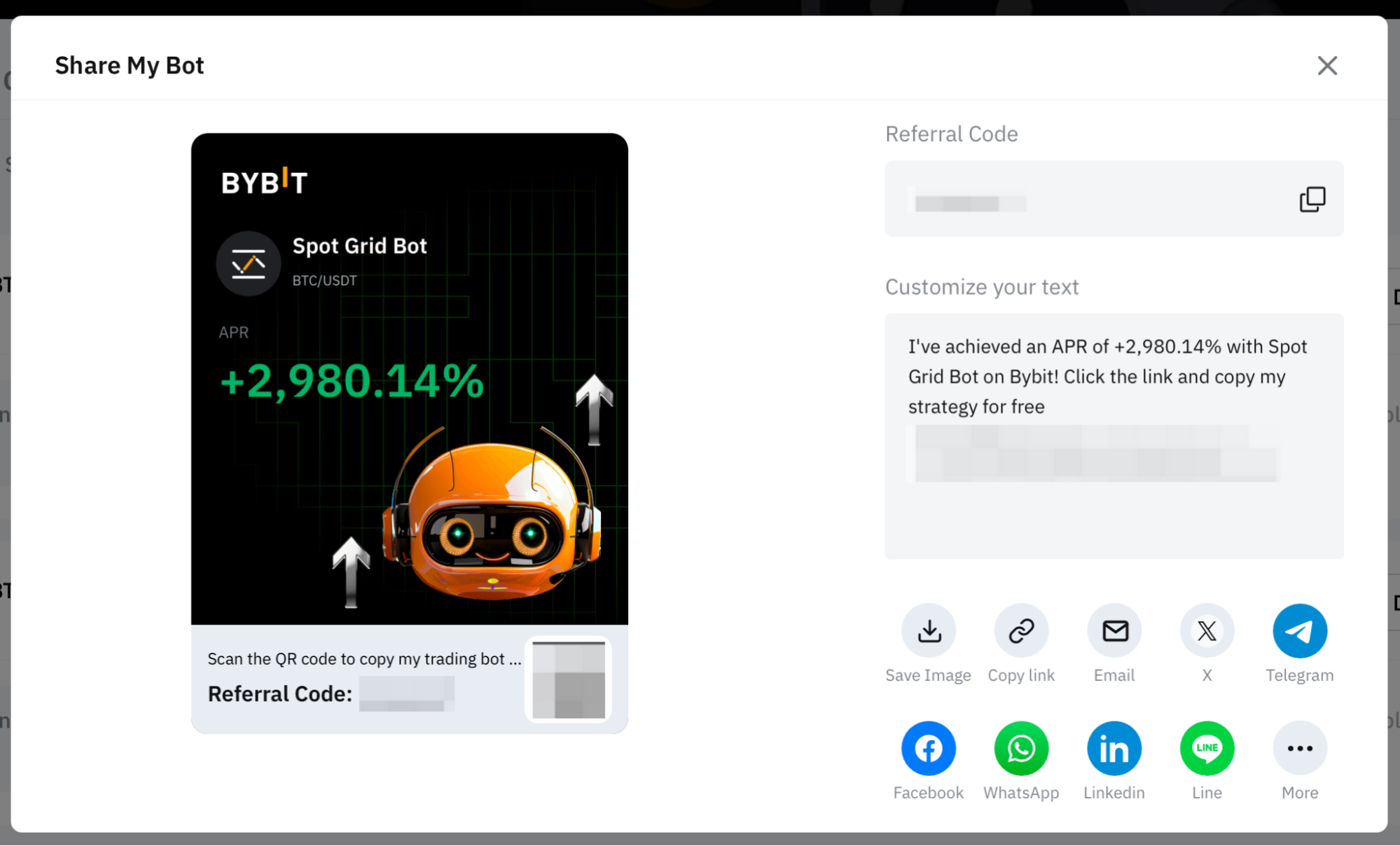
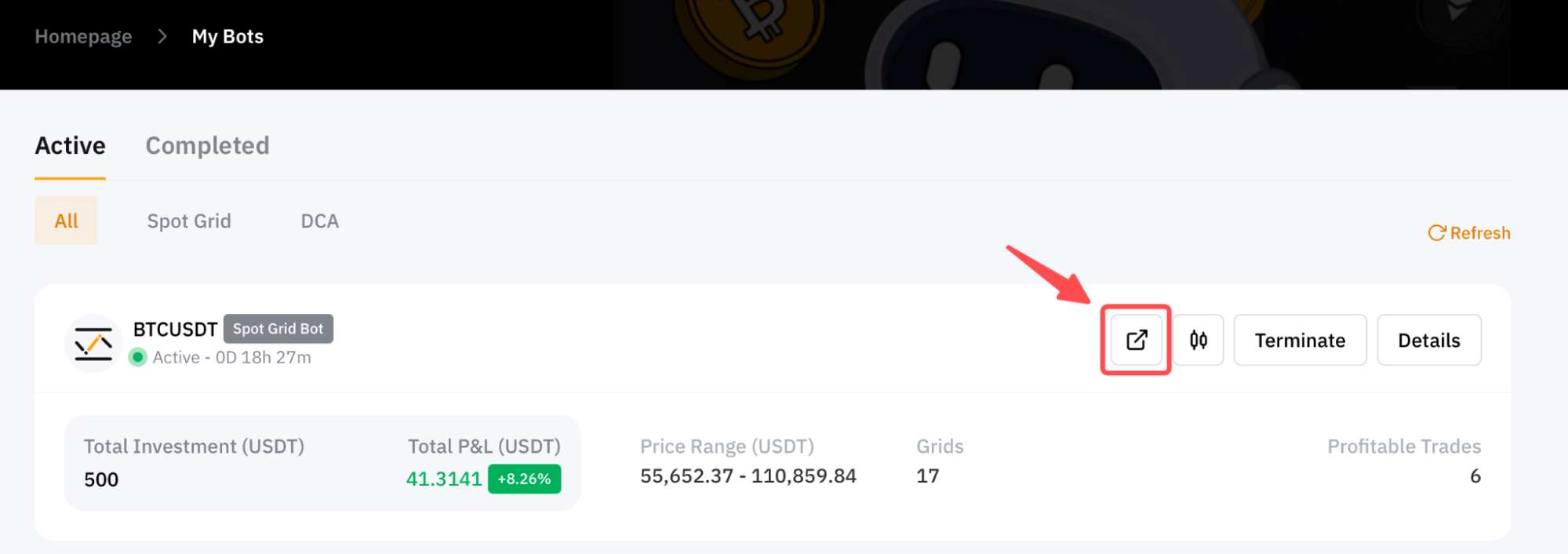
Step 1: Please tap on View My Bots to enter the Bybit Indonesia Trading Bots page. Then, tap on the Share icon in the lower right corner of the Spot Grid Bot column to share.
Step 2: Click on any of the supported channels below to share the Bybit Indonesia Trading Bot page URL with your friends.