Mainnet account login URL: https://www.bybit.id/app/user/security
Testnet account login URL: https://testnet.bybit.id/app/user/security
Important Information:
1) It is highly recommended that a copy of your Recovery Key Phrase is stored securely. RKP is needed when you attempt to bind into a new Google Authenticator.
2) To ensure maximum account and asset security, Bybit Indonesia urges all traders to have their 2FA binded to their Google Authenticator at all times.
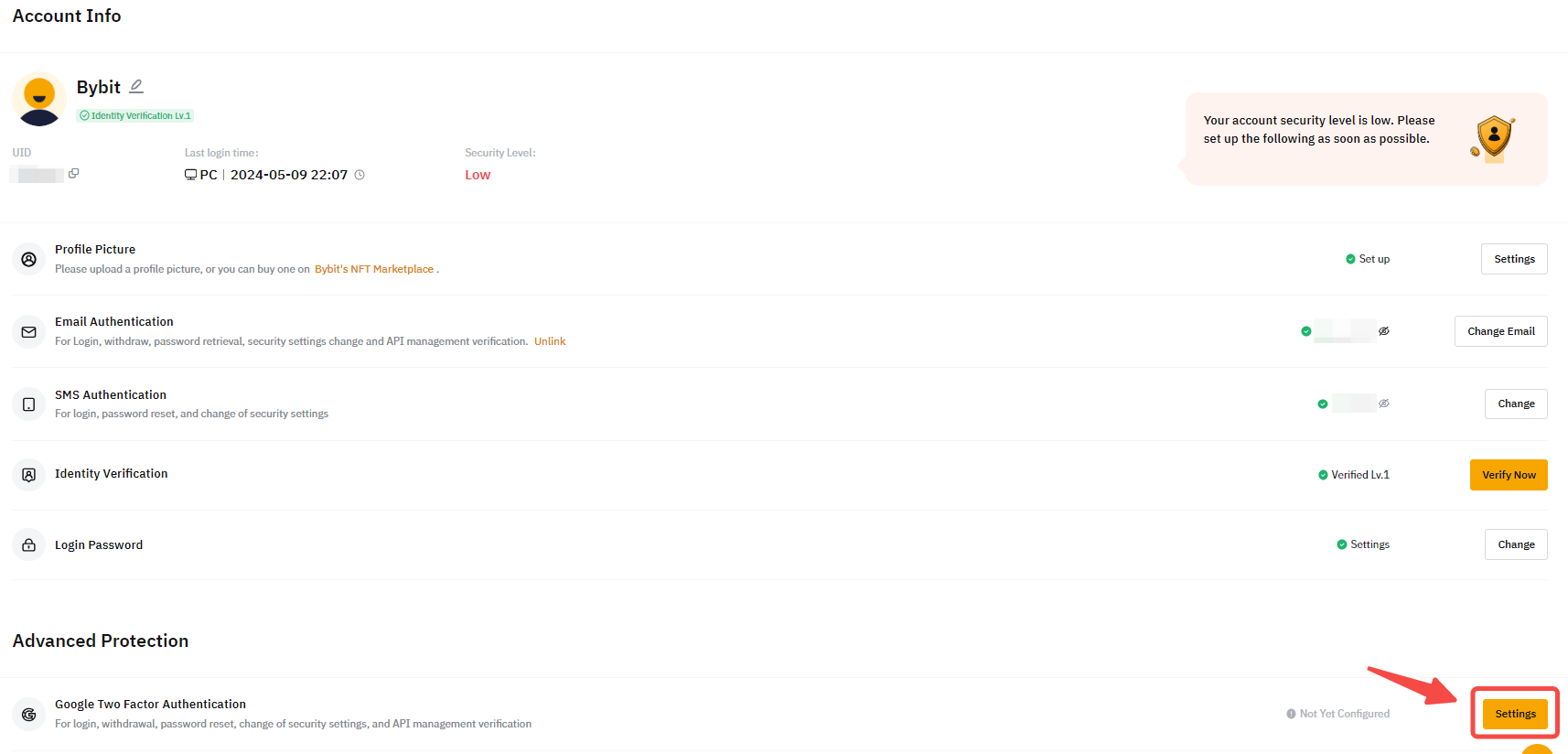
Step 1: Click on the link above to enter your account's security settings page. Perform a login if prompted. Click on the Settings button as shown below.
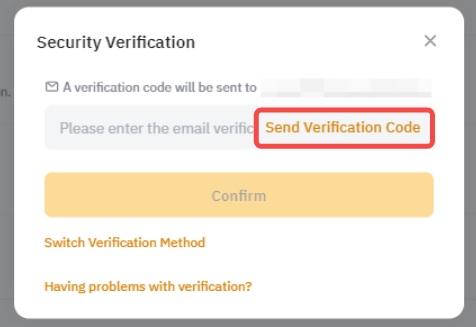
Notes:
- If you are not able to receive the verification code by email, please consult this article: Troubleshooting : Unable to receive Email verification code.
- If you are not able to receive the verification code by SMS, please consult this article: Troubleshooting : Unable to receive SMS verification code.
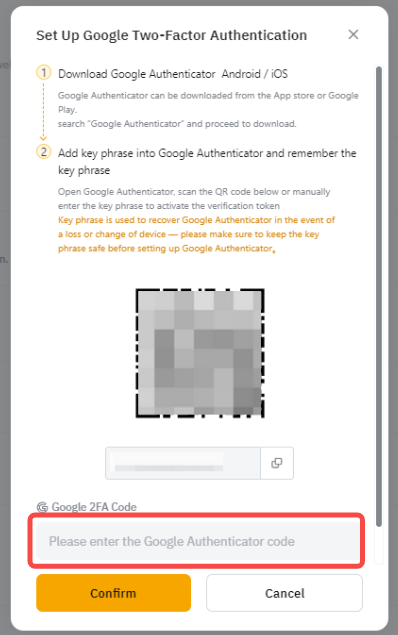
Step 3: A pop out window showing a QR code will appear. Leave it untouched first while you use your smartphone to download the Google Authenticator App from Google Play Store or Apple App Store.
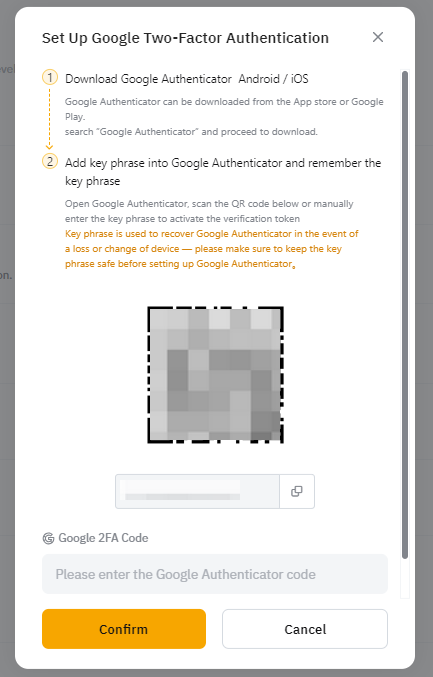
Step 4: Download the official Google Authenticator App from Google Play Store or Apple App Store.
Step 5: Launch the Google Authenticator app inside your smartphone or tablet. Select the + icon and select Scan a QR code.
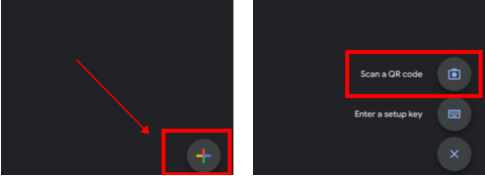
Step 6: Scan the QR code and a 6 digit 2FA code will be randomly generated inside your Google Authenticator App.
Step 7: Write down the Recovery Key Phrase (RKP). Store your RKP securely inside an encrypted cloud server or inside another secured device.
Step 8: Key in the 6 digit code generated in your Google Authenticator and click Confirm.
Note: If you receive the error message "invalid code" after entering the GA code, please consult this article: Troubleshooting: Google Authenticator "Invalid Code" error.
You have successfully binded your Google Authenticator to your account.